
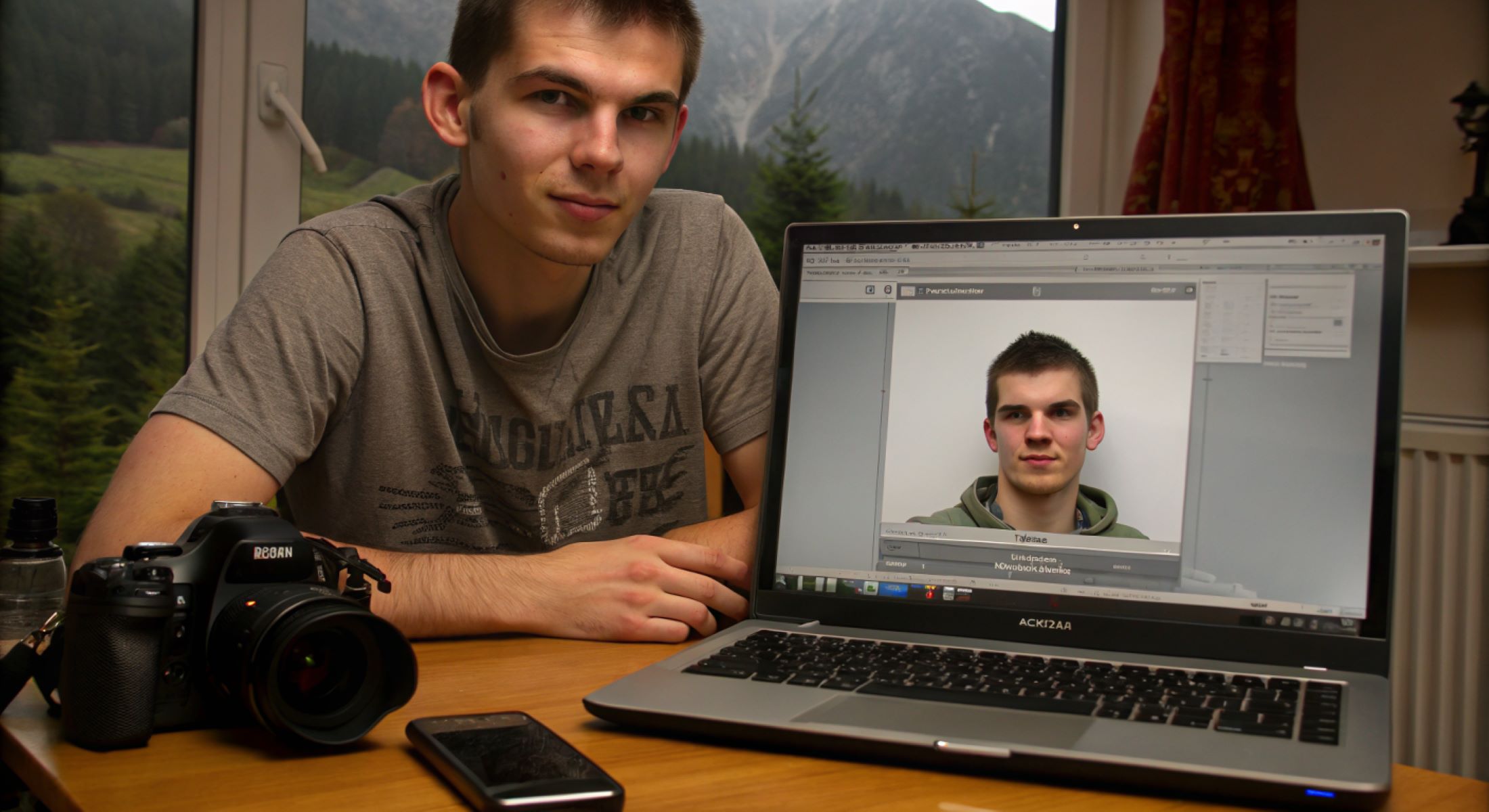
Have you ever been stuck trying to get a proper ID photo? Whether it’s for a passport, driver’s license, job application, or any official document, getting the perfect ID photo is crucial. In this digital age, the process has evolved—now you can snap and submit your ID photos online without stepping foot in a photo studio. Sounds convenient, right? But here’s the catch: there’s an art and a science behind taking digital ID photos that meet official standards. Mess it up, and your application could be delayed or rejected. Don’t worry—I’m here to guide you step by step through the process of taking and submitting digital ID photos online, ensuring you get it right the first time.
Understanding Digital ID Photos
Digital ID photos are far more than just casual snapshots taken on a whim. They serve as official representations of your identity and are used by governments, institutions, and various organizations to verify who you are. Because of their critical role in identification, these photos must adhere to very specific rules and standards. Unlike everyday photos, digital ID photos require precise dimensions, a clear and neutral background, proper lighting, and a natural expression. This ensures consistency and clarity, making it easier for officials to match the photo with your face in real life or for facial recognition systems to work accurately.
One of the biggest differences between a digital ID photo and a typical selfie lies in the strict guidelines around appearance. In a digital ID photo, you must face the camera head-on with a neutral expression, meaning no smiles or exaggerated facial movements. This neutrality helps create a consistent image that reflects your natural look, reducing confusion or misidentification. The lighting also needs to be even and bright enough to avoid shadows or highlights that can obscure facial features. All these details are in place to ensure the photo is a true and clear representation of your face under standard conditions.
Another important factor is the background. While selfies often have dynamic or artistic backgrounds, digital ID photos require a plain, usually white or light-colored background with no patterns or shadows. This minimalist backdrop helps the subject’s face stand out clearly without distractions. Any kind of clutter or colored backgrounds could interfere with automated verification systems or make manual checks more difficult. Moreover, the photo must be of high resolution and quality, free from pixelation or blurriness, to capture all facial details accurately.
File format and size are also tightly controlled in digital ID photos. Usually, agencies request images in JPEG or PNG format with specific size limits to ensure quick uploading and processing. This standardization means the photos can be easily stored, transmitted, and viewed without distortion. Unlike casual photos that can be heavily edited or filtered, digital ID photos require authenticity—no retouching or enhancements that alter your appearance are allowed. In essence, these photos are designed to be reliable, uniform, and clear snapshots of your identity, setting them apart from the informal pictures we take every day.
Tools You’ll Need Before Taking Your Digital ID Photo
Before you jump into taking your digital ID photo, it’s essential to gather the right tools and set up your environment properly. Having everything ready beforehand can save you a lot of time and frustration, ensuring the photo meets all the official standards the first time around. Here’s a detailed list of what you’ll need to prepare:
- A Smartphone or Digital Camera with High Resolution
To capture a sharp and clear photo, use a device that can produce high-quality images. Ideally, your smartphone or camera should have a resolution of at least 8 megapixels. This level of detail helps avoid blurry or pixelated photos, which might get rejected by official agencies. If possible, use the rear camera on your phone, as it generally offers better quality than the front-facing one. - A Plain, Neutral Background
The background of your photo is crucial. You should find a plain wall that is either white or a light, neutral color like pale gray or beige. This eliminates distractions and provides good contrast with your face. Avoid backgrounds with patterns, textures, shadows, or any clutter. If you can’t find a suitable wall, consider using a portable plain backdrop or even a large sheet in the right color. - Good Lighting Setup
Proper lighting is vital for showing your facial features clearly. Natural daylight is the best option because it is even and soft. Try positioning yourself near a window with indirect sunlight, avoiding harsh direct rays that cause shadows. If natural light isn’t available, use soft, diffused indoor lighting sources like lamps with lampshades or ring lights. Avoid overhead lighting that can cast unflattering shadows on your face. - Photo Editing Software or Online Tools
After taking your photo, you’ll often need to crop it to the exact size and adjust the brightness, contrast, and alignment according to the official guidelines. There are many free and paid photo editing apps available for smartphones and computers. Some online platforms specialize in ID photo editing, guiding you through cropping and checking compliance. Make sure the tool you choose can save images in accepted file formats like JPEG or PNG without compressing the quality too much. - Reliable Internet Connection
Since you’ll be submitting your digital ID photo online, having a stable internet connection is necessary. This allows you to upload the photo smoothly and download any official templates, size guides, or apps that can help you prepare the photo properly. Slow or unstable connections might interrupt your upload or cause file corruption, leading to rejection or delays.
What Exactly Is a Digital ID Photo?
| Feature | Description | Purpose | Effect on Identification | Why It’s Strict |
| Size and Resolution | Must meet precise dimensions (e.g., 2×2 inches) and high resolution (300 dpi or higher) | Ensures image clarity and standardization | Prevents pixelation and detail loss | Uniformity across all submissions |
| Background | Plain, neutral background, usually white or light gray | Avoids distractions and improves contrast | Facial features stand out clearly | To avoid interference with facial recognition tech |
| Face Position & Expression | Frontal, head-on view with neutral expression (no smiling, mouth closed, eyes open) | Provides consistent facial angles and features | Helps facial recognition algorithms work accurately | Prevents misidentification from different angles |
| Lighting | Even, bright lighting without shadows or glare | Shows facial details clearly without distortion | Maintains consistent appearance under different conditions | Avoids shadows hiding facial features |
| File Format & Size | Typically JPEG or PNG; file size limits to ensure easy uploading and storage | Facilitates electronic submission and system compatibility | Ensures quick processing and accessibility | Prevents technical errors during upload or review |
Step-by-Step Guide to Taking Your Digital ID Photo
Taking a digital ID photo might seem straightforward, but there’s more to it than just snapping a quick picture. The process begins with setting up the right environment. Choosing a plain, light-colored wall as your background is crucial because patterns or shadows can interfere with the clarity of your photo and lead to rejection. Good lighting is equally important—natural daylight is ideal as it provides soft, even illumination that avoids harsh shadows on your face. Position yourself about a meter away from the wall to prevent any shadow casting, ensuring your features are clearly visible and the background stays uniformly plain.
Next, what you wear and how you present yourself play a significant role in the quality and acceptance of your photo. Dressing simply and neatly is best. Avoid white shirts since they blend into a white or light background, causing your face to lose definition in the picture. Accessories like hats or sunglasses that hide your face are a no-go, and heavy makeup or extravagant hairstyles should be avoided because they can distort your natural appearance. The goal is to appear as natural and recognizable as possible so that the photo serves its purpose as an accurate identification tool.
Your positioning in front of the camera is another critical factor. You should face the camera directly with your head straight—no tilting or turning to the side. Maintaining a neutral expression is required, so no big smiles, open mouths, or raised eyebrows. Look straight into the camera lens with your eyes open and clearly visible. This direct, neutral pose helps create a standardized image that is easy for both humans and facial recognition software to analyze. To capture the best shot, use the rear camera of your smartphone for better quality, hold the camera at eye level, and use a timer or get help from someone else. Taking multiple shots increases your chances of getting the perfect photo.
Once you have your photos, it’s time to ensure they meet all specifications. Most official documents require photos of a certain size (commonly 2×2 inches), with a resolution of at least 300 dpi, and saved in JPEG or PNG format under a specific file size limit (often below 240 KB). The background must be plain white or light-colored, and your head size within the frame should fall between specified measurements to ensure your face is neither too small nor too large. After verifying these specs, edit your photo carefully—crop it to size, adjust brightness and contrast to enhance clarity, but avoid any filters or retouching that alter your appearance. Using trusted online editing tools or apps designed for ID photos can help you meet these standards precisely and improve your chances of acceptance.
Common Mistakes to Avoid When Taking and Submitting Digital ID Photos
Taking and submitting digital ID photos might seem straightforward, but even small errors can cause your photo to be rejected or delay your application. To help you avoid common pitfalls, here’s a detailed list of mistakes many people make, along with advice on how to steer clear of them:
- Using Busy or Patterned Backgrounds
One of the most frequent mistakes is choosing a background that isn’t plain. Walls with patterns, decorations, shadows, or cluttered environments distract from your face and often cause the photo to be invalid. Always select a plain, light-colored wall or backdrop—ideally white or a neutral tone—so that your facial features stand out clearly without interference. - Poor or Uneven Lighting
Lighting can make or break your ID photo. Photos taken in dim environments, harsh sunlight, or with overhead lighting often have shadows that obscure parts of your face or cause uneven highlights. This makes it harder for officials or facial recognition systems to verify your identity. Aim for soft, even lighting—natural daylight near a window is best—or use diffused artificial lights to illuminate your face evenly without glare or shadow. - Submitting the Wrong File Format or Oversized Images
Official portals usually specify acceptable file formats (commonly JPEG or PNG) and maximum file sizes. Uploading images in unsupported formats or files that are too large can lead to automatic rejection or errors during submission. Before uploading, check that your photo is saved in the correct format and compress it if necessary to meet size requirements, without sacrificing image quality. - Smiling, Wearing Accessories, or Incorrect Facial Expression
Many agencies require a neutral facial expression for ID photos. Smiling, frowning, or opening your mouth can change your natural appearance and cause your photo to be rejected. Similarly, accessories such as hats, sunglasses, or even tinted glasses often aren’t allowed because they hide facial features. Always maintain a straight, relaxed face with your eyes open and mouth closed. Remove any headwear or eyewear unless you have a valid reason (e.g., religious head covering). - Incorrect Head Position or Angle
Tilting your head, looking away from the camera, or turning your face even slightly can result in a photo that does not meet requirements. Your face should be fully visible, centered, and looking straight ahead. This helps maintain uniformity and allows for easier identification.
How to Submit Your Digital ID Photo Online
| Step | Actions to Take | Important Details | Common Issues to Avoid | Tips for Success |
| Create a Digital Copy | Scan a physical photo at high resolution or save your digital photo properly | Use accepted file formats like JPEG or PNG; file size must meet limits | Using incorrect file format or oversized files can cause rejection | Name the file exactly as required (e.g., passport_photo.jpg) |
| Upload to Official Site | Log in to the relevant application portal, find the photo upload section, and select your photo | Ensure the portal supports the file format and size you are uploading | Uploading incomplete or corrupted files may cause errors | Use a stable internet connection to avoid upload interruptions |
| Verify Photo Acceptance | Check for instant feedback from the system after uploading the photo | Green checkmark or confirmation means success; error messages indicate problems | Ignoring error messages or failing to re-upload after corrections | Read error details carefully and correct specific issues immediately |
| Submit Application | After successful photo upload, continue filling out the rest of the application and submit all documents | Final submission confirms your application is complete and under review | Submitting without a valid photo upload will delay or reject application | Double-check all fields before final submission to avoid mistakes |
Pro Tips to Nail Your Digital ID Photo Like a Pro
Getting your digital ID photo right the first time can save you a lot of time, hassle, and frustration. One of the best ways to ensure a great shot is to stabilize your camera properly. Using a selfie stick or tripod can make a huge difference, especially when you’re taking the photo by yourself. These tools help keep the camera steady, prevent blurry images, and allow you to position the device at the perfect angle and height, usually at eye level. This stability ensures your photo looks professional and meets the exact requirements for framing and focus.
Another powerful tip is to leverage online ID photo services. These websites and mobile apps are designed specifically to guide you through the entire process—from capturing the photo to editing it precisely according to official standards. They often include templates, automatic cropping, background removal, and compliance checks, making it much easier for you to produce a photo that passes inspection without having to guess or second-guess the technical details. Many of these services also provide instant feedback, which helps avoid costly rejections.
Taking multiple shots is something every professional photographer recommends, and it applies just as well when you’re snapping your digital ID photo at home. Don’t settle for the first picture you take. Instead, try different expressions (within the allowed neutral range), slight changes in lighting or positioning, and various angles directly facing the camera. This variety gives you options to choose the one that best fits the guidelines and looks natural. It’s always better to have several photos to select from than to risk submitting a less-than-perfect one.
Lastly, never underestimate the importance of following official guidelines down to the letter. Each agency or institution may have unique rules about photo dimensions, background color, file format, and even head size within the frame. Ignoring or improvising on these requirements can lead to immediate rejection and delays. So, before you start, take the time to download or print the official instructions and keep them handy during the photo shoot and editing process. Sticking strictly to the rules will boost your confidence that the photo you submit will be accepted without issue.