
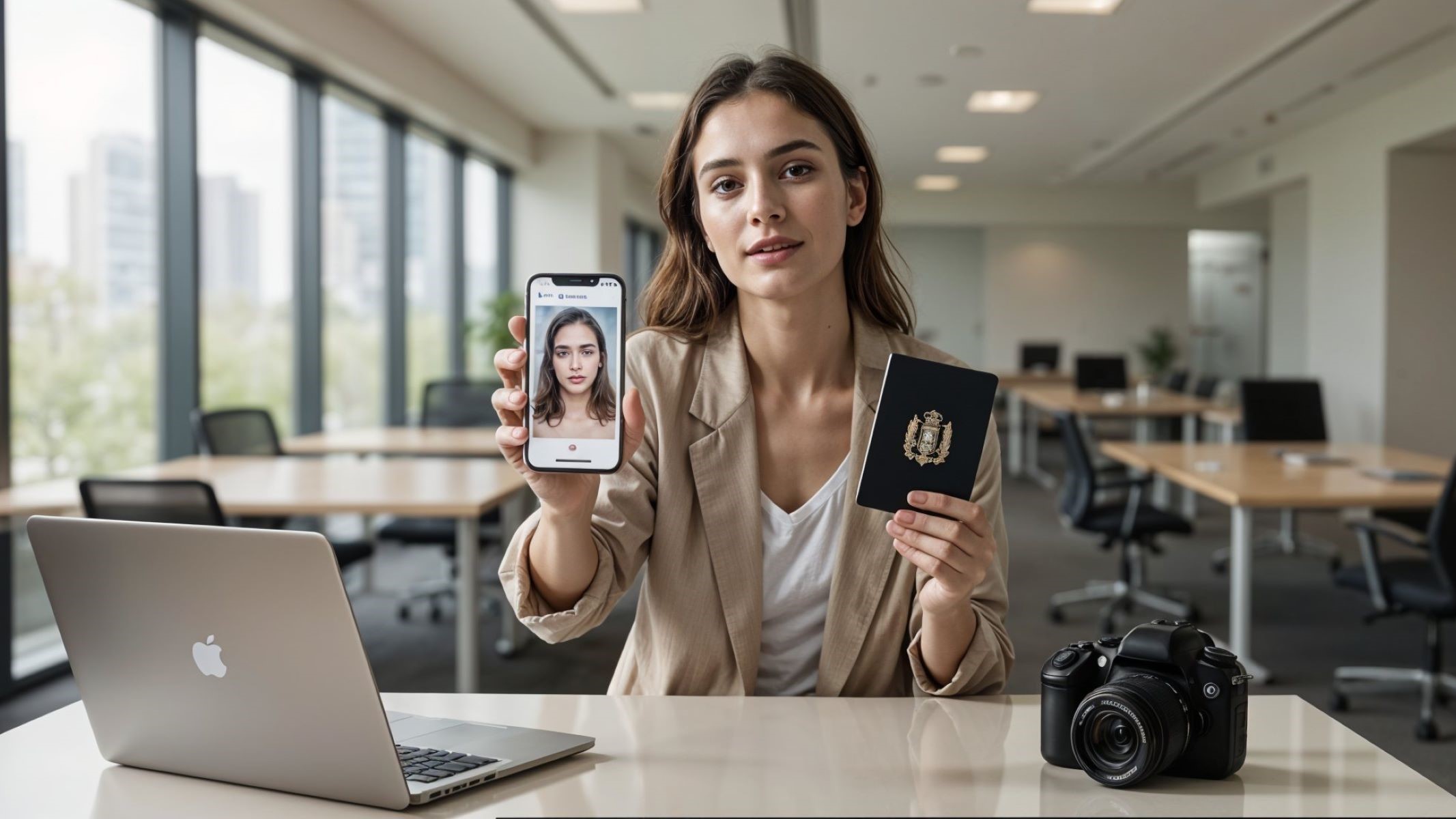
When it comes to applying for a passport, one of the most crucial yet often overlooked parts is the passport photo. Believe it or not, a small slip-up on your photo can cause delays or even rejections. That’s why getting it right matters—and that’s where a Passport photo online maker can come in handy. But just using one isn’t enough; you need to know the tricks and tips to create flawless passport photos that meet strict requirements. So, let’s dive deep and uncover everything you need to know about using a Passport photo online maker to get that perfect shot without the hassle.
What Is a Passport Photo Maker?
A passport photo maker is a digital tool—either as an app, software, or a web-based service—created specifically to help users generate passport-sized photos that meet official government specifications. These tools are designed with pre-set templates for various countries’ photo requirements, such as dimensions, background color, and face positioning. Whether you’re applying for a passport, visa, driver’s license, or other identification documents, this tool ensures that your photo won’t get rejected due to simple formatting mistakes. With governments getting stricter about biometric standards and digital submissions, having an accurate and compliant photo is more important than ever.
What makes a Passport photo online tool particularly useful is that it gives you full control over the process without needing any professional photography experience. You no longer have to schedule time-consuming appointments or pay extra fees at a photo studio. Instead, you can take your own photo at home using a smartphone or digital camera. After capturing the image, you simply upload it to the photo maker. From there, the software automatically crops your head and shoulders to fit standardized proportions, aligns your face according to biometric guidelines, and adjusts the background color, lighting, and shadows if needed.
These tools often come equipped with artificial intelligence and facial recognition technology, which helps analyze the uploaded image for compliance. For example, they can detect if your expression is too animated, your face is tilted, or if there’s glare from your glasses—common mistakes that could cause rejections. Some apps even guide users through the photo-taking process with live feedback, offering suggestions like “move closer,” “fix lighting,” or “adjust your posture” in real time. This built-in guidance system is especially helpful for people unfamiliar with passport photo requirements or those trying to meet complex rules from countries like the U.S., U.K., or Canada.
Another great feature of Passport photo online makers is their ability to generate ready-to-print templates or optimized digital files, depending on how you’re submitting your application. If you’re applying online, you can instantly download a JPEG that meets the specific pixel size and file format required. If you prefer a printed copy, the software arranges multiple images on a single sheet that you can print at home or send to a photo kiosk. In both cases, you’re not just saving money—you’re also saving yourself the headache of rejections and do-overs. The result? A stress-free experience where you can be confident that your photo is up to standard the first time around.
Why Use a Passport Photo Maker?
Using a passport photo maker offers a range of advantages that go far beyond just snapping a quick picture. While visiting a professional studio is still an option, digital passport photo tools provide unmatched flexibility, affordability, and convenience. Here’s a detailed breakdown of why more people are choosing passport photo makers over traditional photography services:
- Total Convenience
You can take your passport photo anytime and anywhere—at home, at work, or even while traveling. All you need is a smartphone, camera, or webcam. There’s no need to book appointments, stand in line, or travel to a studio. You’re in full control of when and where you take your shot. - Cost-Effective Solution
Traditional photo studios can charge premium prices for passport photo sessions, especially if prints are included. With Passport photo online tools, many are free or very affordable, and you can reuse the service for multiple documents. If you already have a decent camera or smartphone, your only expense may be a few cents to print the final photo. - Fast Turnaround Time
In most cases, you can create and download your final image in just a few minutes. There’s no waiting around for photo processing or reprints. If you’re applying last minute or have a tight deadline, this can be a lifesaver. - Guaranteed Compliance with Official Standards
Passport photo makers are designed to comply with the specific rules of your country’s passport or visa agency. They guide you to make sure your head is properly positioned, your face is clearly visible, and the background meets strict color requirements. Many tools even have templates tailored for countries like the U.S., U.K., Canada, India, Australia, and more.
Understanding Passport Photo Requirements
| Requirement | Standard | Purpose | Common Mistakes | Tips for Compliance |
| Photo Size | 2 x 2 inches (51 x 51 mm) | Ensures uniformity for document processing and biometric scans | Using incorrect dimensions like 4×6 or passport ID cards | Use a photo maker with pre-set templates for your country |
| Head Size | 1 to 1 3/8 inches from chin to crown | Keeps your face properly scaled within the frame | Head appears too small or too large in photo | Align your eyes and chin according to the guide grid |
| Background | Plain white or off-white, no textures | Provides a clean backdrop for facial recognition technology | Patterns, colored walls, or objects in background | Use automatic background removers to create uniformity |
| Facial Expression | Neutral expression, mouth closed, eyes open | Avoids confusion during facial identification processes | Smiling, frowning, tilting head, or closing eyes | Think “passport serious”—relaxed, but not expressive |
| Headwear | Only for religious or medical reasons | Ensures full visibility of the face and hairline | Wearing hats, caps, or fashion headbands | Submit a declaration if wearing religious headwear |
| Glasses | Not allowed or must not reflect light | Prevents glare and ensures full visibility of eyes | Reflections on lenses, tinted glasses, or too thick frames | Remove glasses unless medically necessary and glare-free |
| Photo Age | Taken within the last 6 months | Ensures your image reflects your current appearance | Using old or outdated photos | Retake the photo before every new passport application |
| Lighting | Even, no shadows or hotspots | Clear facial details without shadows or overexposure | Harsh lighting, backlighting, or dark shadows | Use natural light or a soft lamp setup from the front |
| Resolution & Quality | At least 300 dpi, high clarity | Prevents pixelation and preserves facial detail | Blurry or low-resolution photos | Use HD camera or smartphone with 12MP+ resolution |
Step-by-Step Guide to Using a Passport Photo Maker
Creating a flawless passport photo from the comfort of your home might sound tricky, but with the right steps and a reliable passport photo tool, it’s easier than you think. The first thing you’ll want to do is pick a platform that suits your needs. With so many options out there—ranging from free online editors to advanced mobile apps—it’s important to choose one that’s user-friendly and compliant with your country’s official photo specifications. Look for features like automated cropping, background adjustment, and high-resolution downloads. Reviews from other users can also give you a solid idea of whether the passport photo tool actually delivers accurate results.
Once you’ve picked your preferred software or app, it’s time to take the photo itself. This part matters more than most people realize. Choose a spot with good lighting, preferably near a window with soft, natural light. Harsh shadows or uneven lighting can ruin the image, making it unusable for passport or visa purposes. Stand or sit against a plain white background and keep your face straight and relaxed. Make sure your eyes are open, mouth closed, and your expression neutral. Avoid wearing white clothes that might blend into the background, and definitely remove any accessories like glasses or hats that might obstruct your face.
After taking your photo, upload it to the passport photo tool and begin the adjustment process. Most tools will automatically crop the image to fit official passport dimensions, but it’s always a good idea to double-check head size and alignment. You can fine-tune the brightness or contrast slightly, but stay away from filters or heavy editing—passport authorities require natural, unaltered images. If the background isn’t perfect, the passport photo tool usually includes a background remover or whitening function that replaces your backdrop with a plain, regulation-compliant white tone. Make sure there are no objects, shadows, or textures left behind.
Finally, once your image looks perfect and meets all the visual criteria—face centered, eyes open, no glare or red-eye—you can download it in the preferred file format, usually JPEG. Depending on your needs, you can either print it yourself on glossy photo paper using the correct dimensions or submit the digital version directly through your country’s passport portal. A high-quality passport photo tool ensures that the final result is clean, compliant, and ready for submission, helping you avoid frustrating rejections or delays in the application process.
Tips for Flawless Passport Photos
Taking a great passport photo isn’t just about having a decent camera. It’s a combination of technical accuracy and knowing how to present yourself within strict guidelines. Here are some professional-level tips to make sure your passport photo comes out flawless and gets approved the first time around:
- Pay Attention to Lighting
Lighting can make or break your passport photo. The best lighting source is soft, natural daylight—ideally from a nearby window. This helps avoid harsh shadows or bright glares that can distort facial features. Avoid direct sunlight, which can make you squint or cast strong shadows across your face. If you’re indoors, use a daylight-balanced lamp positioned in front of you and slightly above eye level to evenly light your face and eliminate shadows under the chin or around the nose. - Stabilize Your Camera for Sharpness
A blurry photo will absolutely be rejected, so keeping your camera or phone steady is critical. Use a tripod if you have one, or set your phone on a stable surface like a shelf, table, or stack of books. Avoid handheld shots unless you’re using a remote shutter or timer function to eliminate hand movement. The sharper your photo, the better the results—especially when cropping and resizing in a passport photo tool later on. - Dress Smart for Contrast
Wear clothes that contrast well with a white or light background. Avoid white shirts or light beige tops that may blend into the background and make it hard to define the edge of your body and shoulders. Dark, solid-colored shirts like navy, black, or deep green work well. Also, choose tops without logos, stripes, or patterns that could distract from your face. - Skip the Smile—Stay Neutral
While smiling might feel natural, most countries require a completely neutral facial expression for passport photos. That means no teeth showing, no exaggerated expressions, and no duck face. Think of your expression as calm and serious, yet approachable. Your mouth should be closed, eyes fully open, and eyebrows relaxed. It’s not the time for glamour—go with your “passport face.”
Common Passport Photo Mistakes to Avoid
| Mistake | Why It’s a Problem | Rule Violated | Real-World Consequences | How to Avoid It |
| Incorrect size or cropping | Makes the photo unusable for official processing | Photo dimension and head size requirements | Immediate rejection and resubmission delays | Use a passport photo tool with built-in sizing templates |
| Colored or busy background | Distracts from facial features and interferes with scanning | Uniform white/off-white background rule | Authorities may flag or reject due to non-compliance | Take photos against a blank wall or auto-remove background |
| Head tilted or turned | Biometric systems need straight, front-facing images | Full-frontal head alignment rule | Facial recognition errors or photo invalidation | Keep head level, shoulders straight, and camera at eye level |
| Wearing glasses or headwear | May block eyes or face; reflections interfere with clarity | Eyes must be fully visible | Automatic rejections unless exception is approved | Remove unless required by religion/medicine with justification |
| Poor lighting/shadows | Conceals facial details, reduces image clarity | Lighting must be even, no shadows | Unclear photo leads to system rejection | Use soft, indirect lighting and check for shadow-free result |
| Facial expression (smiling) | Facial recognition requires neutral expression | Must have a neutral, natural look | Authorities may refuse expressive or smiling images | Keep lips closed, relax your face, and look directly at camera |
| Wearing white clothing | Can blend into the background, affecting image contrast | Visual clarity requirement | Face may not be properly distinguishable from background | Choose darker solid colors like navy, black, or gray |
| Hair covering eyes or eyebrows | Obstructs critical biometric markers | Entire face must be visible | System may not identify the individual correctly | Tie or brush hair back to reveal eyebrows and both eyes |
Best Passport Photo Maker Apps and Websites
If you’re trying to find the most reliable and user-friendly platforms to create compliant ID photos, you’re in luck. Today, there are several trusted passport photo makers available online and as mobile apps, and they cater to users looking for everything from simple cropping to full AI-powered compliance checking. One standout option is Passport Photo Online, a widely used tool that offers automatic cropping, background removal, and real-time compliance feedback. It’s available on web browsers, iOS, and Android, making it incredibly versatile. The app supports photos for a wide range of documents beyond just passports, and users can download high-resolution JPEGs in seconds. While many of its basic features are free, advanced options and premium downloads may require a fee.
Another notable option is IDPhotoStudio, a no-frills, offline software solution that runs on Windows. This tool is perfect for those who prefer not to rely on internet connectivity or want to keep everything stored locally. It allows you to quickly format your image to match a variety of passport and visa requirements without needing any technical skills. While it lacks some of the flashier features of online platforms—like background removal or AI guidance—its simplicity and zero cost make it a favorite among frequent travelers and DIY users who just want fast, offline functionality.
If you’re looking for an online service that offers international versatility, MyPassportPhotos is worth considering. It specializes in producing compliant passport photos for dozens of countries and includes built-in checks to ensure your image meets all the necessary biometric standards. Once the image passes these checks, you can either download the file or have printed copies shipped to your door. While this service is paid, users appreciate the convenience of having physical prints handled by the platform and the confidence of knowing their photo will be accepted by government agencies.
For those who want a fast web-based solution with a strong focus on ease of use, ePassportPhoto delivers. It gives you an instant preview of your image and walks you through every step of creating a valid passport photo, including tips for lighting and positioning. You can upload your image, adjust it using simple tools, and download a printable version with multiple copies on a single sheet. The platform works both in browsers and on mobile devices, with both free and premium options depending on your needs. Windows users also have the choice of Passport Photo Maker, a desktop application that includes ready-made templates for many countries and formats. It’s particularly useful for users who want to customize their images offline or produce passport photos in bulk.